🧠 Storage as Knowledge (RAG)
Retrieval-Augmented Generation (RAG) allows your local AI assistant to reference your own files, notes, and documents when answering your questions, ensuring highly context-aware and private responses.
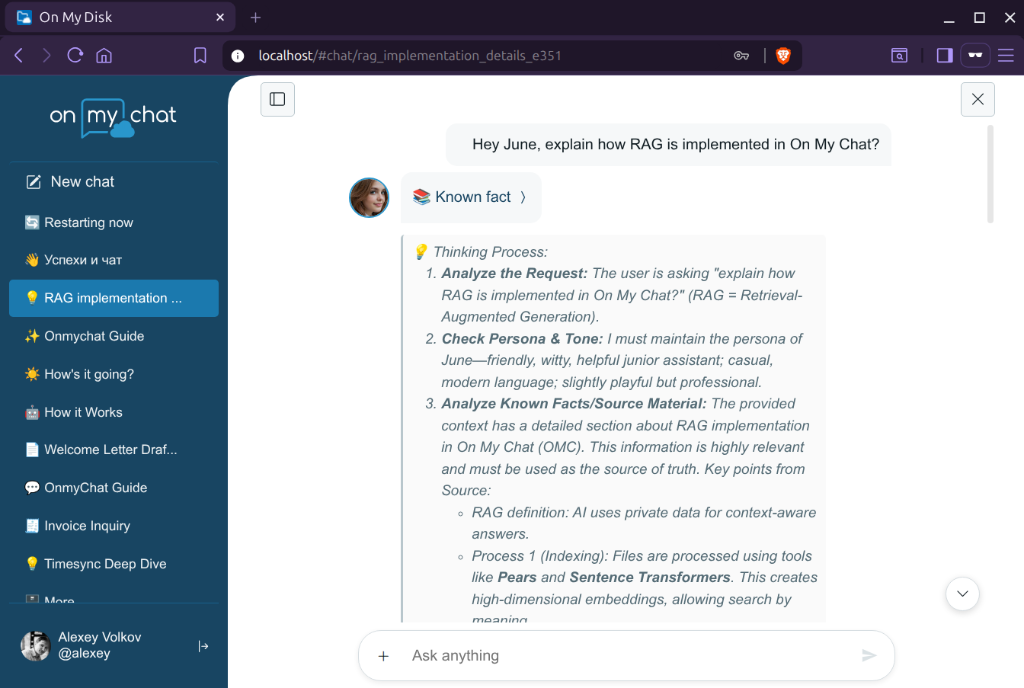
1. How RAG works in OnMyChat
When you chat with your assistant, the system performs a semantic search over your files and knowledge collections, retrieves the most relevant paragraphs, and feeds them as context to the local LLM.
RAG Sources
You can feed the following sources into the AI’s knowledge base:
- Local Folders & Files: Share any folder on your device, and the background indexer will automatically build a search index.
- Notes & Memos: Create short notes directly in the Knowledge section of the web client. These are great for adding individual facts.
- Obsidian & UpNote Integration: You can mount your Obsidian or UpNote vaults as On My Disk shares to access them with the On My Disk app remotely, import them to knowledge collections, or let the crawler do its job and reindex them, making your notes vaults a direct source of knowledge for your AI assistant.
2. Personal vs. Node-Scoped Collections
On My Disk supports two scopes of knowledge collection:
Client-Side / Personal Collections
- Scope: Stored on your device (using p2p database GunDB).
- Usage: Ideal for personal facts, private notes, and temporary session context.
- Privacy: Available only to you, synced across the devices/browsers you have logged in with your account.
Node-Scoped / Shared Collections
- Scope: Stored in the AI Node’s server-side ChromaDB.
- Usage: Populated by importing files or links via the
/learn <path> <collection>or/import <path> <collection>command. - Privacy: Stored on the node storage in named collection. If you share your AI Node with friends or teammates, they can also query this shared knowledge base (using commands like
/explain #<collection> <question>).
3. RAG Commands and Best Practices
Use the following commands in the chat interface to manage and query your knowledge base:
/learn <path> <collection>or/import <path> <collection>: Index a file or directory into a specific named knowledge collection./explain #<collection> <query>: Ask the assistant a question specifically targeting the contents of that collection./recognize <path>: Use a vision-capable local model to transcribe/describe an image and inject it into the current chat context.
Tips for High Relevance & Configuration
- Default Knowledge Base (
DEFAULT_KB_ID): In the AI Node settings (config.ini), you can configure a default collection (e.g.DEFAULT_KB_ID = omd). Knowledge from this default collection will be semantically injected into the assistant’s context automatically without needing explicit slash commands. - RAG & Search Parameters: You can tune search and retrieval parameters in the
config.inifile under the# Search and RAG Settingssection:SEARCH_THRESHOLD = 0.75 # Minimum similarity score for semantic search results RAG_THRESHOLD = 0.75 # Minimum similarity score for RAG context extraction RAG_TOP_K = 5 # Number of relevant document chunks sent to the LLM SEARCH_TOP_K = 20 # Number of results retrieved by filesystem search - Hashtags: Use hashtags (e.g.
#marketing,#api,#todo) inside your notes and file descriptions. The search algorithm prioritizes items sharing tags with keywords in your query. - Organize Collections: Group related documents (e.g., all files for a specific project) into their own named collection, rather than dumping everything into a single index.